Welcome to Omega Krypto's ACE try out. This guide explains this tool and how to use it.
|
|
Advanced Cipher Engine (ACE)
|
Why try out?
According to Merrian-Webster's dictionary definition, a try out is an experimental performance or demonstration.
We want to give you the opportunity to try our encryption, see how easy is to use it and how powerful!
Privacy Considerations
Ω The Encryption/Decryption process runs in your browser on your own computer, it does not run in our servers and so it does not consume bandwidth.
Ω If you select to process a file, such file will be processed in your own device's memory, it will not be sent to us in any way.
Ω When you chose to store the result from the process, it will be stored from your device's memory into in your default donwmload folder.
Ω The stored result file will always be named result_file.oko
Try Out limitations
Ω In order to allow the try out to be used on as many devices as possible, we have limited the input size (either typed, pasted or from a file) to a maximum of 10 Mega Bytes. If the input is larger, it will be truncated to the first 10 MB.
Ω It has no limitations on the type of file to be processed or used as primary or secondary keys.
Ω The processing speed depends only on your device capabilities, operating system and browser in use.
How to use this Try Out
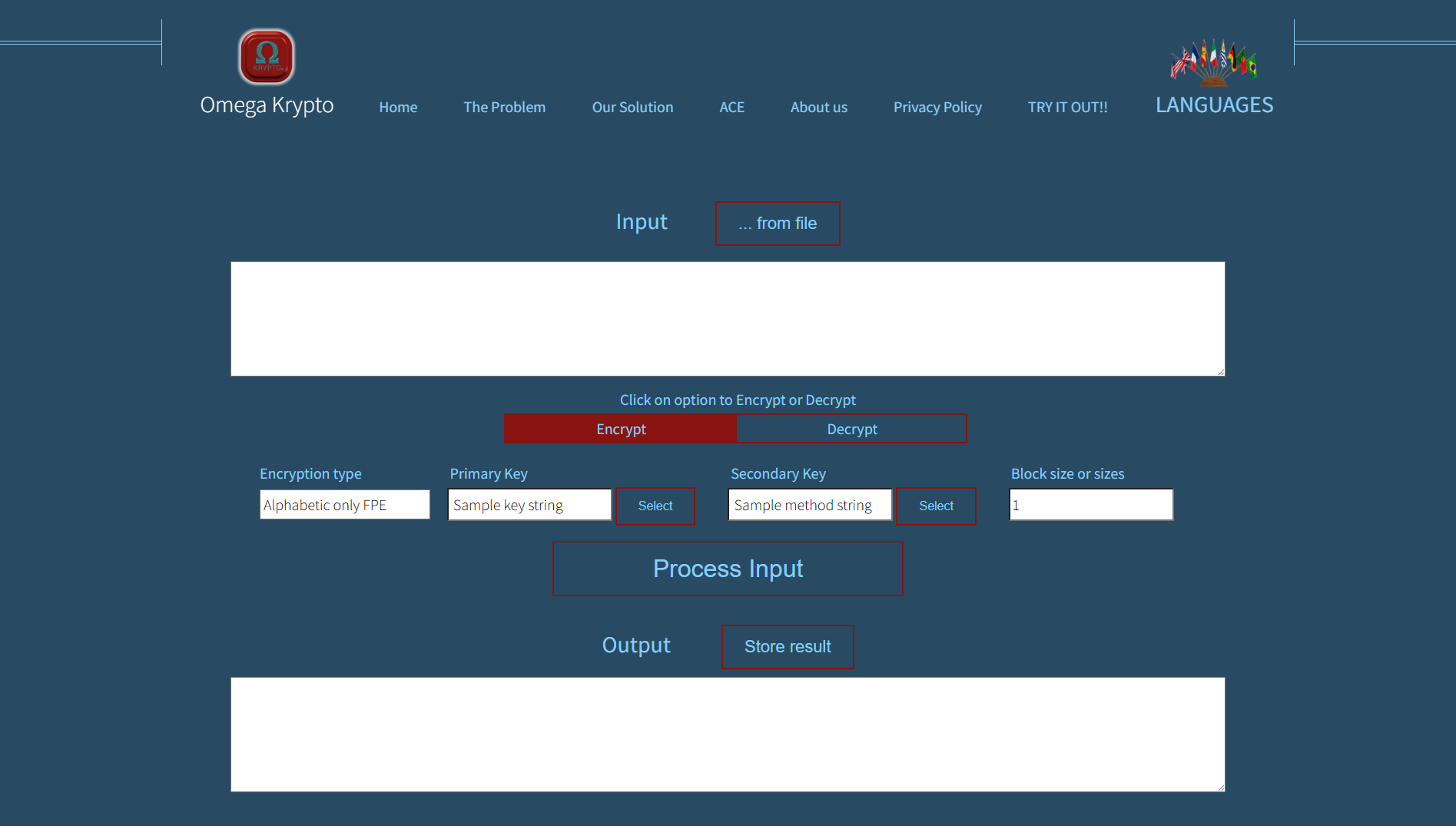
Try Out Screen
Input Data
To process a file, click on the "... from file" button, it will open file explorer for you to select the file you want to process. Once you select the file, it's content will be displayed in the input area and the "... from file" button will change to "x Release file", clicking on it will release the file and start over.
To directly enter data, just click on the white input area and there you can start typing.
Encrypt/Decrypt Selection
You should click on the Encrypt button if you want to encrypt and on Decrypt button to decrypt.
The selected option will have a dark red background and you cannot click on it, the unselected option will have a blue background and you can select it by clicking on it.
Encryption Type
Alphabetic only FPE - Will replace, through Format Preserving Encryption, any alphabetic character in your input with another alphabetic characters. Non-alphabetic characters will not be touched.
Alphabetic + Space FPE - Similar to the previous one but adds the space character to the alphabet and also processes it.
Numeric Only FPE - Will replace, through Format Preserving Encryption, any numeric character in your input with another numeric characters. Non-numeric characters will not be touched.
Alphanumeric + Space FPE - Will replace, through Format Preserving Encryption, any alphabetic, numeric or space character in your input with another alphanumeric or space characters. Characters that do not match the criteria will not be touched.
Printable Characters - Will replace, through Format Preserving Encryption, any printable character in your input with another printable characters. Characters that do not match the criteria will not be touched.
Non-FPE - Will replace, through encryption, any byte from your input with another byte.
Primary Key
You can type the primary key you want to use for the process or you can select a file to be used as the primary key.
There are no limitations on the type of file you may use.
Secondary Key
Same as the primary key, you can type the secondary key you want to use for the process or you can select a file to be used as the secondary key.
There are no limitations on the type of file you may use.
There are no requirements on the lengths of the keys, you may use whatever length you may want for each of them, (from a single character up to 5 MB in this try out).
Block size or sizes
Here you may select a block size for the process, then the input file will be read in blocks of such size and within each block, the bytes will be processed in reverse order. If the last block is shorter than the block size selected, the block size will be adjusted to the remaining input bytes.
You may enter a list of block sizes as numbers separated by commas and the process will use consecutive block sizes according to what you entered.
Process Input
Once you are ready, just click on the Process Input button to start processing.
You will see a message while the process is running.
Once the process is complete, it will show you a popup window telling you how many bytes were processed and how long it took in seconds. Click on the X on the top right cornee to close this pop up window.
Output
The output area will show the result from the process.
Click on the Store result button to store the result in your device.
The result will be stored in your default download folder and its name will be "result_file.oko".
File extension ".oko" stands for Omega Krypto Output.